Fill a Word template with JSON and save the PDF in Node.js.
The document layout lives in a normal DOCX file. Your application sends the template ID and a JSON object of values. The API fills the template and answers with the PDF, which your code writes to disk.
Word templateUploaded once and activated in your TmplVision account.
One POST requestfetch with a FormData field data. No SDK to install.
PDF in the responseHTTP 201 with the PDF bytes, saved as proposal.pdf.
An API token from API Tokens in your account. Keep it in your server or local environment. Never put it in browser code, a public repository or a file you share.
The matching region. The account, API token and template must all be in EU or all in US. EU accounts use eu.api.tmplvision.io, US accounts use us.api.tmplvision.io.
Step by step
From the example files to your first PDF
The commands below are complete. Run them in one terminal window, because the environment variables only exist in that session.
Upload and activate the Word template
To follow along, use the example proposal DOCX. In TmplVision, upload it as a new template and save it. Click Activate and confirm, then copy its Template ID. New templates are inactive and cannot be used through the API until you activate them.
On success the script prints Saved proposal.pdf and writes the file into the current folder. Each successful run uses one document generation from your monthly quota.
A token typed on the command line can end up in your shell history. In your application, take it from your server's environment or secret store instead.
Open the PDF and compare it
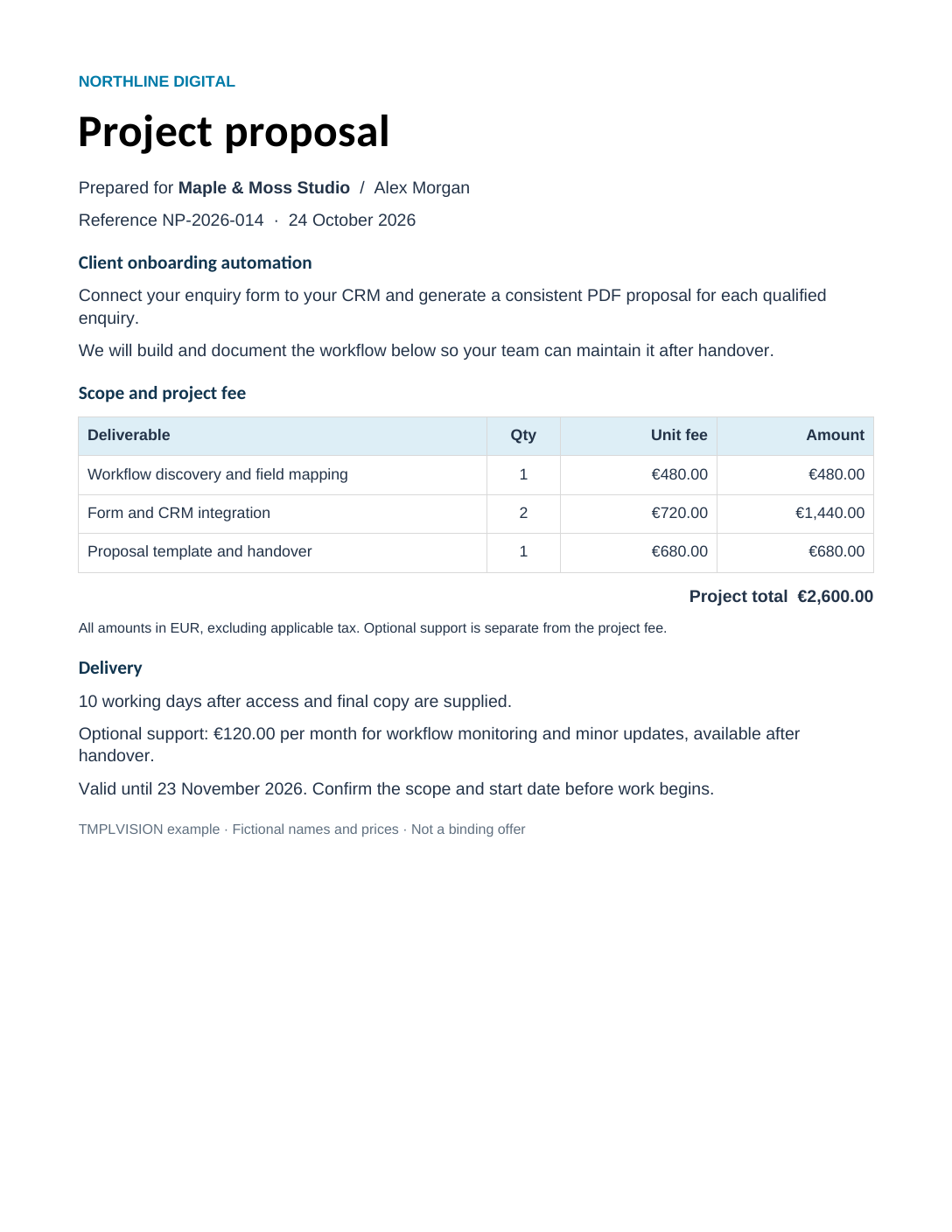
Open proposal.pdf and compare it with the reference PDF (saved as reference-proposal.pdf, so it doesn't collide with your result). With the example template and data, both show the same client, three line items, a €2,600.00 total and the support offer. The files are not byte-identical because PDF metadata such as the creation date differs.
Run it again without the support section
The script always writes proposal.pdf and replaces an existing file of that name. Rename the first result, then pass the second data file as an argument. In the same terminal:
The new proposal.pdf has the same items and total, but no support paragraph. Compare it with the reference PDF without support.
What the script sends
The request and the response
This is the complete downloadable script. Use the same request in your own application; the full endpoint reference is in the API documentation.
// Node.js 22+. Keep this file and proposal-data.json in the same folder.
const { readFile, writeFile } = require('node:fs/promises');
const path = require('node:path');

async function main() {
    const apiToken = process.env.TMPLVISION_API_TOKEN;
    const templateId = process.env.TMPLVISION_TEMPLATE_ID;
    const region = process.env.TMPLVISION_REGION || 'eu';
    if (!apiToken || !templateId) {
        throw new Error('Set TMPLVISION_API_TOKEN and TMPLVISION_TEMPLATE_ID first.');
    }
    if (!['eu', 'us'].includes(region)) throw new Error('TMPLVISION_REGION must be eu or us.');
    const input = process.argv[2] || path.join(__dirname, 'proposal-data.json');
    const variables = JSON.parse(await readFile(input, 'utf8'));
    const form = new FormData();
    form.append('data', JSON.stringify({ templateId, variables }));
    const response = await fetch(`https://${region}.api.tmplvision.io/v1/generation/pdf`, {
        method: 'POST',
        headers: { 'x-apitoken': apiToken },
        body: form,
        signal: AbortSignal.timeout(120000),
    });
    if (response.status !== 201) {
        throw new Error(`HTTP ${response.status}: ${await response.text()}`);
    }
    const pdf = Buffer.from(await response.arrayBuffer());
    if (pdf.subarray(0, 5).toString() !== '%PDF-') throw new Error('The API did not return a PDF.');
    await writeFile('proposal.pdf', pdf);
    console.log('Saved proposal.pdf');
}
main().catch(error => {
    // fetch reports network problems as "fetch failed"; the reason is in error.cause.
    const cause = error.cause?.message || error.cause?.code;
    console.error(cause ? `${error.message}: ${cause}` : error.message);
    process.exitCode = 1;
});
Request
POST https://eu.api.tmplvision.io/v1/generation/pdf (or us.api)
Header x-apitoken with your API token
Multipart form body with one text field data
data is JSON.stringify({ templateId, variables })
Don't set a Content-Type header yourself. When the body is a FormData object, fetch sets multipart/form-data with a generated boundary.
Response
On success, the API answers with HTTP 201 and the PDF file itself as the body. It does not return JSON or a download link.
The script reads the body as an ArrayBuffer, checks that it starts with %PDF- and only then writes the file. Any other status is reported with the API's JSON error message, and nothing is saved.
Line items and optional sections
What the Word template does with the data
This is the complete content of proposal-data.json. It is the variables object only; the script adds templateId around it.
{
  "reference": "NP-2026-014",
  "issued": "24 October 2026",
  "validUntil": "23 November 2026",
  "company": "Maple & Moss Studio",
  "contact": "Alex Morgan",
  "project": "Client onboarding automation",
  "summary": "Connect your enquiry form to your CRM and generate a consistent PDF proposal for each qualified enquiry.",
  "items": [
    {
      "description": "Workflow discovery and field mapping",
      "qty": 1,
      "rate": "€480.00",
      "amount": "€480.00"
    },
    {
      "description": "Form and CRM integration",
      "qty": 2,
      "rate": "€720.00",
      "amount": "€1,440.00"
    },
    {
      "description": "Proposal template and handover",
      "qty": 1,
      "rate": "€680.00",
      "amount": "€680.00"
    }
  ],
  "total": "€2,600.00",
  "delivery": "10 working days after access and final copy are supplied.",
  "support": true,
  "supportFee": "€120.00"
}
01
Values
{{company}} or {{total}} in the document are replaced with the matching value.
02
One table row per item
The table row starts with {{#each items}} in its first cell and ends with {{/each}} in its last. Add or remove entries in items and the table gets one row per entry.
03
Optional paragraph
{{#if support}}…{{/if}} wraps the support offer. proposal-no-support-data.json is identical except for "support": false, so the paragraph is left out.
Your application supplies every value, including rates, line amounts and the total. TmplVision inserts them as written and does not calculate amounts, totals or taxes. If you change the line items, calculate and format total in your own code. The example uses preformatted EUR strings such as "€2,600.00".
To change the wording or layout instead of the data, edit the DOCX. With the edited example DOCX uploaded and activated as a second template, the same command and data produce a PDF with a revised introduction, as in this reference PDF. Only TMPLVISION_TEMPLATE_ID changes.
The reference PDFs were generated from these templates and data files with TmplVision's document renderer. The script's request and its error handling are checked automatically against simulated API responses, without a real account. The same request format is used by our n8n guide, whose runs we tested against the EU API. Fonts and pagination of your own templates can differ, so check a few outputs before sending them to clients.
Troubleshooting
If the script fails
The script prints one error line and exits with code 1. Lines starting with HTTP contain the API's JSON error; the important part is its message.
Set TMPLVISION_API_TOKEN and TMPLVISION_TEMPLATE_ID first.
One of the two variables is missing in this terminal session. Set both again (step 3) in the window where you run node. In PowerShell, use $env: as shown; set or export do not set environment variables there.
TMPLVISION_REGION must be eu or us.
Set the region to exactly eu or us, in lowercase.
HTTP 403 with Not Authenticated.
The API doesn't know the token. Check that you copied the whole token and that the region matches your account: a token from an EU account is unknown to the US API, and the other way round.
HTTP 403 with API token has expired. or Forbidden to access given template.
Create a new token, or use a token from the same organisation as the template.
HTTP 404 with Template with id … not found.
The template ID is wrong or belongs to the other region. Copy the ID again from the template in your account.
HTTP 400 with Template with id … is not active.
Open the template in TmplVision, click Activate and confirm.
HTTP 402 with Monthly document generation quota exceeded.
Your plan's monthly generations are used up. See pricing.
The API did not return a PDF.
The response had status 201 but its body was not a PDF, so the script saved nothing. Check that the request URL in the script is unchanged and that no proxy replaces the response.
fetch failed followed by a reason
No connection to the API host, for example a DNS problem (ENOTFOUND), a firewall or a proxy. Check that the machine can reach eu.api.tmplvision.io or us.api.tmplvision.io over HTTPS.
The operation was aborted due to timeout
The script waits up to 120 seconds for the PDF. Run it again; if it keeps happening, check your connection to the API host.
ENOENT: no such file or directory or a JSON syntax error
Run the command in the folder that contains the JSON file, and check the file name. If you edited the data, make sure it is still valid JSON: double quotes, no trailing commas.
Connect your own Word template.
Upload the document you already use, mark the fields that change and send your application's data with the same request. All example files stay free to download without an account.