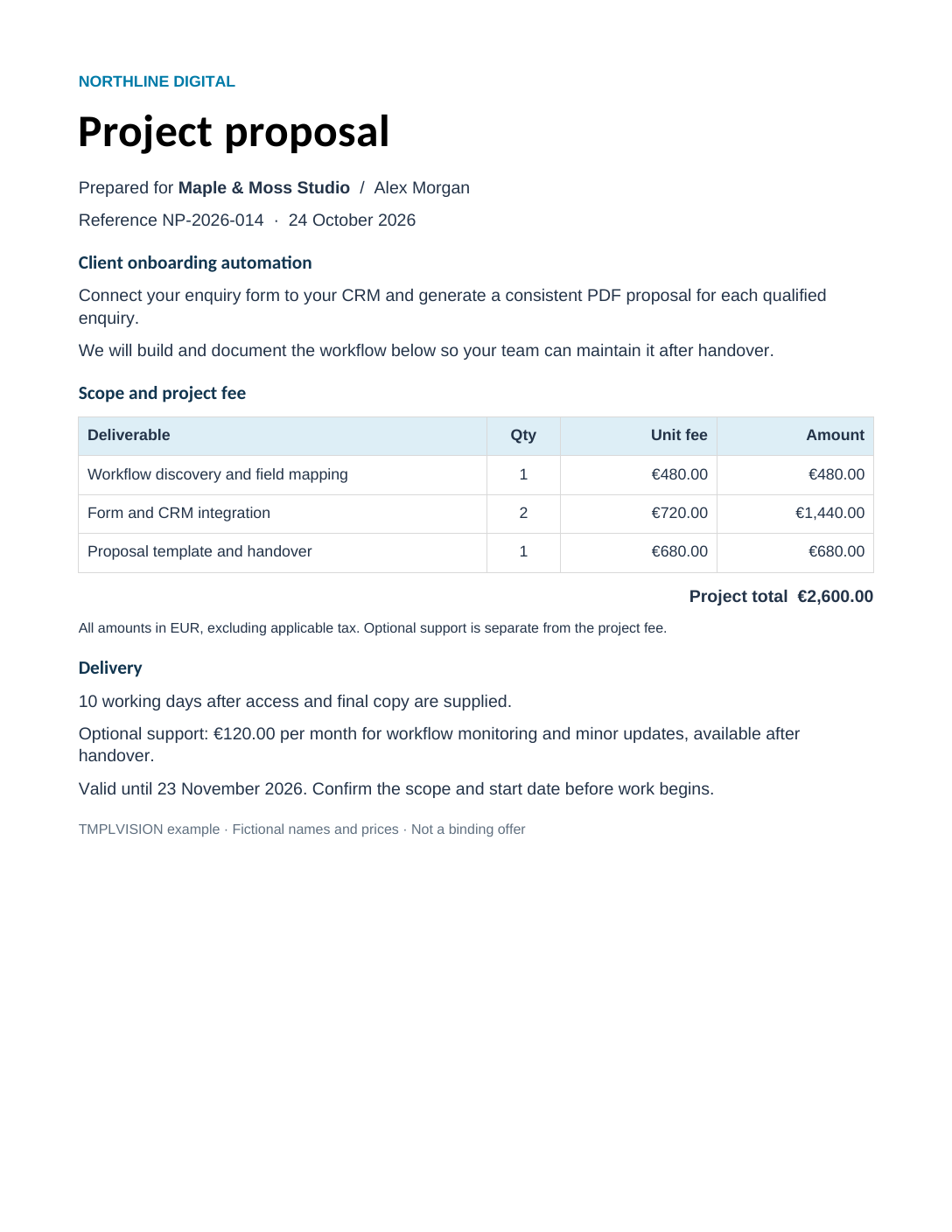
Generate PDF proposals from Word templates with n8n.
Your team or your client edits the proposal in Word. n8n supplies the client details and line items. TmplVision fills the template and returns a PDF to your workflow.
Word templateWording, branding and layout stay in a normal DOCX file.
n8n dataA workflow node sends the template ID and the values for this client.
PDF back in n8nThe HTTP Request node receives the file in its binary field data.
Tested on 25 October 2026 with self-hosted n8n 2.44.6 and the EU API. Uses n8n's standard HTTP Request node; there is no separate TmplVision node to install.
Its template ID, copied from the template in your account.
An API token from API Tokens in your account. Enter it only in an n8n credential, never in a workflow node or a shared export.
The matching region. The account, API token and template must all be in EU or all in US. EU accounts use eu.api.tmplvision.io, US accounts use us.api.tmplvision.io.
Step by step
From an imported workflow to your first PDF
The example workflow has three nodes: Run example (manual trigger), Proposal data (Code) and Generate proposal PDF (HTTP Request). It only runs when you start it.
Import the workflow from its URL
Create a new workflow in n8n. Open More actions (the … menu), choose Import → From URL and paste:
You can also download the workflow JSON to keep a copy. It contains placeholders only: no credentials and no template ID.
Upload and activate the Word template
In TmplVision, upload the DOCX as a new template and save it. Click Activate and confirm, then copy its template ID. New templates are inactive and cannot be used through the API until you activate them.
Set the template ID
Double-click the box of the Proposal data node to open it. Double-clicking the node's label below it did not reliably open the editor in our test. The node's code starts with these lines. Replace only the value on the first one:
// Replace only this value with your template ID:
const templateId = "YOUR_TEMPLATE_ID";
// Leave this check unchanged:
if (templateId === "YOUR_TEMPLATE_ID") throw new Error("Set your TMPLVISION template ID in this node first.");
This is the beginning of the existing node, not a replacement for the whole code. Keep everything below it as imported. The second statement is a guard that stops the run while the placeholder is still in place, so keep its comparison as it is.
Select your API token credential
Open Generate proposal PDF the same way. Authentication is already set to Generic Credential Type with Header Auth. Create or select a Header Auth credential with these values:
Name
x-apitoken
Value
Your TmplVision API token
If you restrict the credential's allowed HTTP request domains to Specific Domains, enter the API host of your region, e.g. eu.api.tmplvision.io.
Check the region
The node posts to https://eu.api.tmplvision.io/v1/generation/pdf. For a US account, change the host to us.api.tmplvision.io and allow that domain in the credential. Our n8n test used the EU region; the US API uses the same request format.
Run it and download the PDF
Close the node panel and click Execute workflow. When the run succeeds, open Generate proposal PDF, switch its output to Binary and click Download on the field data. n8n 2.44.6 offered a download but no built-in PDF preview here, so open the downloaded file.
Compare it with the saved reference PDF. Each run uses one document generation from your monthly quota.
What the HTTP Request node sends
The request and the response
If you build your own workflow instead of the example, configure the HTTP Request node the same way.
Request
POST https://eu.api.tmplvision.io/v1/generation/pdf (or us.api)
Header x-apitoken from the Header Auth credential
Body content type Form-Data with one text field named data
Don't set a Content-Type header yourself. n8n adds the multipart boundary.
Response
On success, the API answers with HTTP 201 and the PDF file itself as the body. It does not return a JSON download link.
In the node options, Response Format is set to File and Put Output in Field to data. That puts the PDF into the binary field data, where later nodes can pick it up, e.g. to email or store it.
Your workflow supplies every value, including prices, line amounts and the total. TmplVision inserts them as written and does not calculate amounts, totals or taxes. The example uses preformatted EUR strings such as "€2,600.00".
Line items and optional sections
What the Word template does with the data
The variables in Proposal data match the placeholders in the DOCX. This is the complete example variables object from the imported workflow, not the outer { templateId, variables } request:
{
  "reference": "NP-2026-014",
  "issued": "24 October 2026",
  "validUntil": "23 November 2026",
  "company": "Maple & Moss Studio",
  "contact": "Alex Morgan",
  "project": "Client onboarding automation",
  "summary": "Connect your enquiry form to your CRM and generate a consistent PDF proposal for each qualified enquiry.",
  "items": [
    {
      "description": "Workflow discovery and field mapping",
      "qty": 1,
      "rate": "€480.00",
      "amount": "€480.00"
    },
    {
      "description": "Form and CRM integration",
      "qty": 2,
      "rate": "€720.00",
      "amount": "€1,440.00"
    },
    {
      "description": "Proposal template and handover",
      "qty": 1,
      "rate": "€680.00",
      "amount": "€680.00"
    }
  ],
  "total": "€2,600.00",
  "delivery": "10 working days after access and final copy are supplied.",
  "support": true,
  "supportFee": "€120.00"
}
01
Values
{{company}} or {{total}} in the document are replaced with the matching value.
02
One table row per item
The table row starts with {{#each items}} in its first cell and ends with {{/each}} in its last. The row repeats for each entry in items.
03
Optional paragraph
{{#if support}}…{{/if}} wraps the support offer. With "support": false the paragraph is left out.
Three runs we tested in n8n
Sample data as imported. Three line items, €2,600.00 project total, optional support at €120.00 per month. Reference PDF
"support": false in Proposal data. The same three items and total; the support paragraph is gone. Reference PDF
Same data, edited Word file. With the template ID of the edited DOCX, the PDF shows the revised introduction. The workflow itself is unchanged. Reference PDF
Each run produced a one-page PDF whose text matched the reference PDF. Fonts and pagination of your own templates can differ, so check a few outputs before sending them to clients.
To use real data, replace the Proposal data node with the output of your form, CRM or spreadsheet node. Keep the same shape: a templateId and a variables object whose names match your template's placeholders.
Troubleshooting
If the run fails
The status codes and messages below come from the TmplVision API, except for the first one, which comes from the example's Code node.
Set your TMPLVISION template ID in this node first.
The Proposal data node still contains YOUR_TEMPLATE_ID. Replace the value in const templateId (step 3).
400 Template with id … is not active.
Open the template in TmplVision, click Activate and confirm.
404 Template with id … not found.
The template ID is wrong, or the template exists in the other region. Copy the ID again and check the API host.
403 Not Authenticated.
No usable token arrived. Check that the node has the Header Auth credential selected, that the Name field inside that Header Auth credential is exactly x-apitoken (the credential's own display name can be anything), and that the token belongs to an account in the region of the API host.
403 API token has expired. or Forbidden to access given template.
Create a new token, or use a token from the same organisation as the template.
402 Monthly document generation quota exceeded.
Your plan's monthly generations are used up. See pricing.
The credential is not sent
If the credential allows only Specific Domains, the allowed domain must match the host in the node's URL (eu.api.tmplvision.io or us.api.tmplvision.io).
The run succeeds but you can't find the PDF
Open Generate proposal PDF and switch its output from JSON to Binary. The file is in data. If you changed the node options, set Response Format back to File.
Connect your own proposal template.
Upload the Word document you already send to clients, mark the fields that change and point the workflow at its template ID. All example files stay free to download without an account.